

Hyprland from scratch, Part 1

Before you start: I use Hyprland on Arch Linux, so the package commands in this article use Arch's tools. Installing the Linux distribution itself is outside the scope of this guide. Use whichever distro you prefer, and adapt the package commands to its package manager.
Hyprland has matured, and its community offers plenty of ready-to-use dotfiles and polished desktop projects like Noctalia and Ryoku. But I prefer to learn things at a low level, so I decided to rice Hyprland from scratch. This series covers the essentials of Hyprland ricing. Following along can help you understand how the pieces work together and pick up the knowledge and practical skills to make your own changes and improvements.
This part covers installing Hyprland, splitting its configuration into separate files, and installing Quickshell.
Note: the commands and configs here were current when this was written (October 2026, Hyprland 0.56). Hyprland and its tools change quickly, so if something doesn't work, check the Hyprland wiki and the Quickshell docs for the current version.
01Install Hyprland
Hyprland comes in two versions.
hyprland
is the stable release from the official repositories.
hyprland-git
is built from the latest source and gets new features and fixes first,
but it has to be rebuilt on every update. Both work fine, so use
whichever you prefer. The
Hyprland wiki
recommends the release for most people.
The release version is a single package. pacman pulls in its dependencies:
$ sudo pacman -S hyprlandThe git version is available in the AUR. Install it with an AUR helper; I use yay. It needs to be built locally from source and rebuilt whenever you update it.
The package list comes from the wiki's manual build section. First, the build tools and libraries that are in the official repos:
$ sudo pacman -S --needed \
    lua \
    ninja \
    gcc \
    cmake \
    meson \
    libxcb \
    xcb-proto \
    xcb-util \
    xcb-util-keysyms \
    libxfixes \
    libx11 \
    libxcomposite \
    libxrender \
    libxcursor \
    pixman \
    wayland-protocols \
    cairo \
    pango \
    libxkbcommon \
    xcb-util-wm \
    xorg-xwayland \
    libinput \
    libliftoff \
    libdisplay-info \
    cpio \
    tomlplusplus \
    xcb-util-errors \
    glaze \
    re2 \
    muparser
Then the Hyprland stack from the AUR, in the build order the wiki gives:
$ yay -S \
    hyprland-protocols-git \
    hyprwayland-scanner-git \
    hyprutils-git \
    hyprgraphics-git \
    hyprlang-git \
    hyprcursor-git \
    aquamarine-git \
    xdg-desktop-portal-hyprland-git \
    hyprwire-git \
    hyprtoolkit-git \
    hyprland-git
If you want the whole hypr* ecosystem from git, there's also a meta
package,
hyprland-meta-git.
It pulls in hyprland-git together with git builds of the
portal, the polkit agent, hypridle, hyprlock, hyprpaper, hyprlauncher,
and a few others. That's what I use.
$ yay -S hyprland-meta-git
By default, yay doesn't check -git packages for new commits
during an upgrade. This turns it on once and saves the setting:
$ yay -Y --devel --save Warning: with the git version, when a library like
hyprutils gets an ABI-breaking update, everything that
depends on it has to be rebuilt. Otherwise Hyprland fails to start
with a .so not found error
(wiki).
After such an upgrade, rebuild the stack in this order:
luahyprland-protocols-githyprwayland-scanner-githyprutils-githyprgraphics-githyprlang-githyprcursor-gitaquamarine-gitxdg-desktop-portal-hyprland-githyprwire-githyprtoolkit-githyprland-git
Then start Hyprland from a TTY with start-hyprland, as your normal user,
not root.
02Hyprland configuration and dotfiles structure
Starting from 0.55, Hyprland uses Lua
for its config, and the old hyprlang syntax is deprecated. The config
file changed with it: ~/.config/hypr/hyprland.conf is now
~/.config/hypr/hyprland.lua.
The difference is that hyprlang was a list of declarations, while the new
config is a Lua program. Hyprland runs it and exposes its settings through
an hl table of functions. Here's the same bind and option,
old and new:
--- ~/.config/hypr/hyprland.conf
+++ ~/.config/hypr/hyprland.lua
-bind = SUPER, Q, exec, kitty
+hl.bind("SUPER + Q", hl.dsp.exec_cmd("kitty"))

-general {
-    gaps_in = 5
-}
+hl.config({
+    general = {
+        gaps_in = 5,
+    },
+})
In practice, the change shows up in a few places:
- Options go through
hl.config(), keybinds throughhl.bind(), monitors throughhl.monitor(), and environment variables throughhl.env(). - Normal Lua works, so twenty workspace binds can be a
forloop and a bind can call a function. exec-onceis gone. Autostart is a handler for thehyprland.startevent.- Extra files are loaded with Lua's
requireinstead ofsource.
Two things stay the same: the config reloads when you save it, and
hyprctl reload forces a reload. A Lua syntax error makes
Hyprland keep the previous config and show the error. An old
hyprland.conf can't be dropped in unchanged. Treat migrating
as a rewrite.
Everything Hyprland-related goes in ~/.config/hypr/ (strictly,
$XDG_CONFIG_HOME/hypr/). The entry point is
hyprland.lua. If it doesn't exist on first launch, Hyprland
writes the
example config
there. It's worth reading once and keeping a copy, but it's one long file.
I replace it with a short entry point and a conf/ directory
with one file per topic. The examples below use a small, working base
that you can extend as the rice grows:
$ tree ~/.config/hypr
/home/you/.config/hypr
├── hyprland.lua
└── conf
    ├── autostart.lua
    ├── binds.lua
    ├── decorations.lua
    ├── env.lua
    ├── input.lua
    ├── layout.lua
    ├── misc.lua
    ├── monitors.lua
    ├── permissions.lua
    ├── rules.lua
    └── windowrules.lua
require paths are relative to the directory of
hyprland.lua, with . as the separator. This file
replaces the generated one entirely:
-- ~/.config/hypr/hyprland.lua
require("conf.monitors")
require("conf.env")
require("conf.input")
require("conf.decorations")
require("conf.layout")
require("conf.misc")
require("conf.permissions")
require("conf.rules")
require("conf.windowrules")
require("conf.binds")
require("conf.autostart")
Each module is a Lua file loaded in sequence. A local
variable is visible only in its own file, so share values by putting them
in a module that returns a table and assigning the result of
require. A misspelled module name is a hard error. Keep the
entry point order intentional: later modules can override earlier
settings, and autostart callbacks are registered after configuration.
monitors.lua defines each display’s mode, placement, and
scale. Find output names with hyprctl monitors all. The empty
output name is a fallback for displays without a specific rule.
-- ~/.config/hypr/conf/monitors.lua
hl.monitor({ output = "DP-1", mode = "2560x1440@144", position = "0x0", scale = 1 })
hl.monitor({ output = "", mode = "preferred", position = "auto", scale = "auto" })
env.lua sets session environment variables. Put cursor, toolkit, and application environment settings here. These are configured before the autostart handlers run.
-- ~/.config/hypr/conf/env.lua
hl.env("XCURSOR_SIZE", "24")
hl.env("HYPRCURSOR_SIZE", "24")
input.lua contains keyboard, pointer, and touchpad behavior. Change the layout and options to match your hardware.
-- ~/.config/hypr/conf/input.lua
hl.config({
    input = {
        kb_layout    = "us",
        follow_mouse = 1,
        touchpad = {
            natural_scroll = false,
        },
    },
})
decorations.lua holds window appearance: gaps, borders,
colors, rounding, shadows, and blur. This replaces the earlier combined
looks.lua example; general spacing belongs here because it
directly frames the windows.
-- ~/.config/hypr/conf/decorations.lua
hl.config({
    general = {
        gaps_in     = 4,
        gaps_out    = 8,
        border_size = 2,
        col = {
            active_border   = "rgba(e3b448ff)",
            inactive_border = "rgba(3a2a20ff)",
        },
    },
    decoration = {
        rounding = 6,
        shadow = { enabled = true },
        blur = { enabled = false },
    },
})
layout.lua selects the tiling algorithm and its
layout-specific behavior. This example chooses Dwindle and keeps its
automatic split direction. You can set master or
scrolling instead.
-- ~/.config/hypr/conf/layout.lua
hl.config({
    general = { layout = "dwindle" },
    dwindle = { preserve_split = true },
})
misc.lua groups session-wide options that do not fit the display, input, or layout modules. These options hide the wallpaper logo and mascot wallpaper; remove them if you prefer Hyprland’s default background behavior.
-- ~/.config/hypr/conf/misc.lua
hl.config({
    misc = {
        disable_hyprland_logo = true,
        force_default_wallpaper = 0,
    },
})
permissions.lua controls which applications may use
sensitive compositor features. Permissions require
hyprland-guiutils, are disabled until enforcement is enabled,
and take effect only after restarting Hyprland. Grant screen capture only
to applications you trust.
-- ~/.config/hypr/conf/permissions.lua
hl.config({ ecosystem = { enforce_permissions = true } })
hl.permission({ binary = "/usr/bin/grim", type = "screencopy", mode = "allow" })
rules.lua defines workspace-level defaults, such as monitor assignment, gaps, and persistent workspaces. The example keeps workspace 1 available and assigns it to DP-1; change the monitor name or remove the rule if it does not fit your setup.
-- ~/.config/hypr/conf/rules.lua
hl.workspace_rule({
    workspace = "1",
    monitor = "DP-1",
    default = true,
    persistent = true,
})
windowrules.lua sets behavior for windows matched by properties such as class, title, or workspace. This named rule stops apps from changing their window into a maximized state; remove it if you rely on maximize requests.
-- ~/.config/hypr/conf/windowrules.lua
hl.window_rule({
    name = "suppress-maximize-events",
    match = { class = ".*" },
    suppress_event = "maximize",
})
binds.lua holds the keybinds. At minimum you want a terminal, a way to close windows, a way to exit, workspace switching, and mouse move/resize. The exit bind and workspace loop follow the example config. Keep bind functions short: they run on the compositor's event loop, and the binds page warns that a blocking call freezes the whole desktop.
-- ~/.config/hypr/conf/binds.lua
local mainMod  = "SUPER"
local terminal = "kitty"

hl.bind(mainMod .. " + Return", hl.dsp.exec_cmd(terminal))
hl.bind(mainMod .. " + C", hl.dsp.window.close())
hl.bind(mainMod .. " + V", hl.dsp.window.float({ action = "toggle" }))
hl.bind(mainMod .. " + SHIFT + E", hl.dsp.exec_cmd("command -v hyprshutdown >/dev/null 2>&1 && hyprshutdown || hyprctl dispatch 'hl.dsp.exit()'"))

for i = 1, 10 do
    local key = i % 10 -- workspace 10 is on the 0 key
    hl.bind(mainMod .. " + " .. key,         hl.dsp.focus({ workspace = i }))
    hl.bind(mainMod .. " + SHIFT + " .. key, hl.dsp.window.move({ workspace = i }))
end

hl.bind(mainMod .. " + mouse:272", hl.dsp.window.drag(),   { mouse = true })
hl.bind(mainMod .. " + mouse:273", hl.dsp.window.resize(), { mouse = true })
autostart.lua lists programs started once at login: the polkit agent, the bar, the wallpaper, and so on. For now it starts the polkit agent. The Quickshell section adds the bar.
-- ~/.config/hypr/conf/autostart.lua
hl.on("hyprland.start", function()
    hl.exec_cmd("systemctl --user start hyprpolkitagent")
end)
If the config breaks, hyprctl configerrors lists what's
wrong. If it fails before any binds are registered, Hyprland adds
emergency binds: SUPER + Q for a terminal and
SUPER + M to exit. For Neovim users, Hyprland ships Lua type
stubs in /usr/share/hypr/stubs/. Adding that directory to
lua-language-server's workspace library (the wiki shows a
.luarc.json for it) gives completion for the
hl API.
You can find configuration objects, their available values, and examples in the Hyprland documentation.
03Quickshell
Quickshell is a toolkit for building your own bar, widgets, and popups in QML, Qt's declarative UI language. It has no ready-made modules like Waybar. You build everything from QML types, which takes more work but leaves nothing off limits. The status bar is the first piece of the rice, so this is where the real ricing begins.
Like Hyprland, Quickshell comes in two versions.
quickshell
is the stable release from the official repositories.
quickshell-git
is built from the latest source in the AUR. Both work with the config
below, so pick the same way you did for Hyprland.
The release version:
$ sudo pacman -S quickshellThe git version, through yay:
$ yay -S quickshell-gitQuickshell's install docs note that AUR builds can break when Qt is updated. If that happens with the git version, reinstall the package so it rebuilds against the new Qt. Either way, create the config directory:
$ mkdir -p ~/.config/quickshell
Quickshell loads ~/.config/quickshell/shell.qml. Any QML file
next to it whose name starts with an uppercase letter can be used as a
type, so the bar can live in its own Bar.qml
(Introduction).
// ~/.config/quickshell/shell.qml
import Quickshell

ShellRoot {
    Bar {}
}
// ~/.config/quickshell/Bar.qml
import Quickshell
import QtQuick
PanelWindow {
anchors {
top: true
left: true
right: true
}
implicitHeight: 28
color: "#1a1210"
SystemClock {
id: clock
precision: SystemClock.Minutes
}
Text {
anchors.centerIn: parent
text: Qt.formatDateTime(clock.date, "ddd dd MMM hh:mm")
color: "#e3b448"
font.family: "JetBrainsMono Nerd Font"
font.pixelSize: 13
}
} PanelWindow docks to the screen edges it's anchored to and
reserves its height, so tiled windows don't cover it.
SystemClock provides the time; with Minutes
precision it only updates once a minute. Any installed font works in
place of the Nerd Font.
Test it from a terminal first, so QML errors are printed somewhere
readable. qs is a shorter name for quickshell.
While it runs, Quickshell reloads whenever you save a QML file.
$ qs
Once it works, add it to autostart.lua next to the polkit
agent. The hyprland.start
event fires once when Hyprland starts, not on config reloads
(Autostart).
Log out and back in to test it.
-- ~/.config/hypr/conf/autostart.lua
hl.on("hyprland.start", function()
    hl.exec_cmd("systemctl --user start hyprpolkitagent")
    hl.exec_cmd("qs")
end)04The result
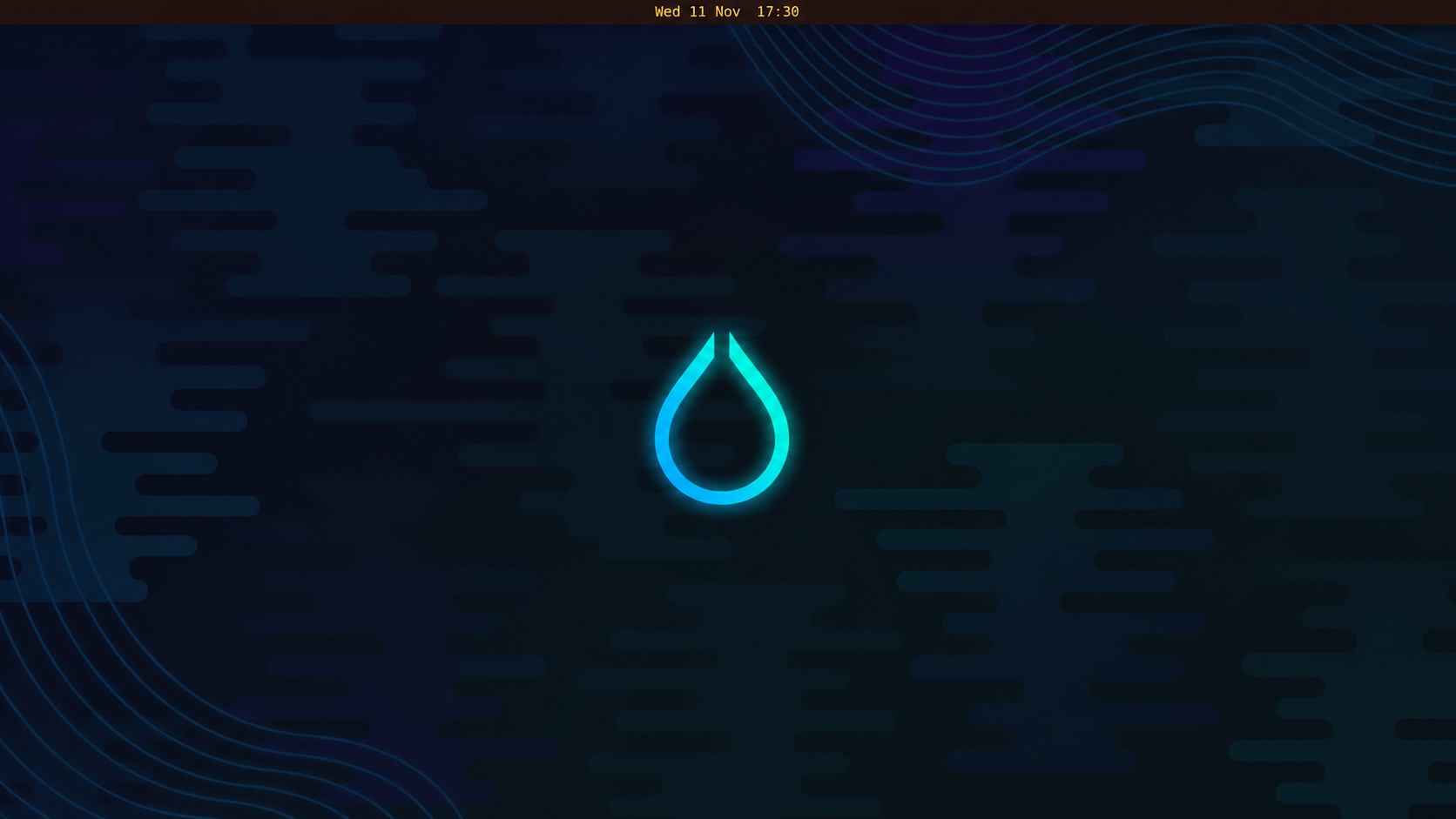
This is what you get after completing this article.
References
- Hyprland wiki: Installation
- Hyprland wiki: hyprpolkitagent
- Hyprland wiki: Configuring
- Hyprland wiki: Binds, Monitors, Autostart
- Hyprland wiki: Config options, Workspace rules, Window rules, Permissions
- Hyprland example config (hyprland.lua)
- AUR: hyprland-git, hyprland-meta-git, quickshell-git
- Arch: hyprland, quickshell
- yay
- Quickshell: Introduction, Installation & Setup